This article consists of instructions on how you run your python code on a stand-alone Raspberry pi connected to a screen while updating your code from your own personal computer..
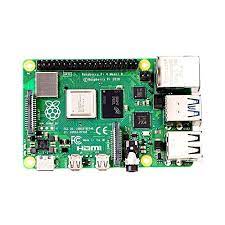
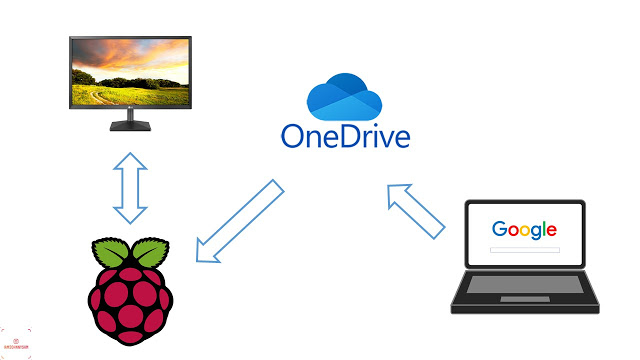
For this project, my main intention is to have a dashboard that will be displayed on a large screen connected to a Raspberry Pi while all the codes can be updated using a computer that is not connected to the Raspberry Pi. My dashboard will be a Kivy app running on python. I will be using a Raspberry Pi 3 B to display the dashboard and I will use a Basic Onedrive account to synchronize the folder structure and the python code between my computer and the raspberry pi.
Getting Started
Step 1:
We will initially start with a fresh copy of Raspbian on the Raspberry Pi 3.
Step 2:
Once the desktop is loaded and the WiFi is connected I proceeded to remove some of the software that I will not be using
sudo apt-get purge wolfram-engine
sudo apt-get purge sonic-pi
sudo apt-get purge greenfoot
sudo apt-get purge greenfoot
sudo apt-get remove --purge libreoffice*
sudo apt-get clean
sudo apt-get autoremove
Step 3:
Next the software on the Pi is updated using the codes below a few times. This will take a few minutes to complete.
sudo apt-get update
sudo apt-get upgrade
Step 4:
Install OneDrive on the Pi. The actual OneDrive application developed by Microsoft does not have a version for the Pi. However, there is a way around it. I used the rclone package on the Raspbian to access a certain folder in my OneDrive account and clone it to a folder on the Pi. Here is the best guide I could find to do this.
Step 5:
Install a suitable scheduling app to the pi to ensure that the code can be running continuously. I used "Gnome Schedule".
sudo apt-get install gnome-schedule
Step 6:
In the scheduler add “rclone sync Onedrive:Dashboard /home/pi/OneDrive” to the command field. Change the fields above as required to match your folder structure. Then add a suitable update time.
Alternatively you can write a shell script and add the above code. To write an executable shell script you can have a look at the link.
Troubleshooting
Depending on your WiFi network, the Raspberry pi may not have access to the correct time. This causes the downloads to fail. You can set your current time manually using the code below.
sudo date -s '2017-02-05 15:30:00'
Problematic Wi-Fi connections may also spit out an error when downloading rclone. This can be bypassed using one of the codes below.
curl -L https://raw.github.com/pageauc/rclone4pi/master/rclone-install.sh | bash
curl -L -k https://raw.github.com/pageauc/rclone4pi/master/rclone-install.sh | bash