If you have ever been the engineer responsible for a machine's design, you know where the truth actually lives: in a Bill of Materials spreadsheet, on a shared drive, with a filename like WGT-100_BOM_RevB_final_v2_USE_THIS_ONE.xlsx. Next to it are folders of drawings, a handful of PDFs someone called Engineering Change Orders, and a lot of tribal knowledge about which revision is really the current one. It works, in the way that a pile of paper on a desk works — right up until two people touch it at once, or the same part turns up in two different projects and nobody notices.
So in my own time I built DesignWorks — a small Product Lifecycle Management app that a manufacturing engineering team can run on its own LAN. It manages projects, a revisioned parts and assemblies library, multi-level BOMs, change orders, drawing attachments and controlled documents, and it enforces the rules that a shared drive politely ignores. This is a personal project, built and maintained on my own; it is not connected to, or supported by, any employer. It is the same itch that made me build the Tester FAT app and the wafer aligner simulator — a paperwork problem wearing a software costume.
The Problem With the Shared-Drive Way
A BOM is not a hard idea. It is a tree: a top assembly made of sub-assemblies made of parts, each with a quantity and a revision. The hard part is not drawing the tree — it is keeping it honest over time, across revisions, across people, and across projects that quietly share components. Here is where the spreadsheet approach falls apart:
- Revisions are tracked by filename. The "current" revision is whatever the last person to save decided to call current. There is no lock, so two engineers can edit the same BOM in two copies and both be right and both be wrong.
- Change control is an honour system. Every change after the first release is supposed to have an ECO behind it. On a shared drive, nothing stops you editing a released BOM directly, and the ECO paperwork — if it happens at all — happens afterwards, from memory.
- Drawings drift from the BOM. The part list says Rev B; the drawing folder still has the Rev A PDF. Nobody linked them, so nobody knows.
- Shared parts are invisible. The same bracket is used in three machines. Someone revises it for one project and the other two carry on building the old one, because nothing told them the part had moved.
- There is no single view. A manager asking "what is outstanding across all projects?" gets a folder tour, not an answer.
None of these are testing problems or drawing problems. They are all the same problem: the data has no system enforcing its rules. That is exactly the kind of thing software is for.
The First Idea, Which Was Wrong
I did not start from nothing. I already had an older, single-user tool of mine — internally I called it BomManager — that could read our structured Excel BOM export (the MindOx-style schema: part number, revision, quantity, classification, type, unit of measure, description) and diff one revision against another. My first instinct was the lazy one: bolt accounts and a freeze button onto BomManager and call it done.
That collapsed almost immediately. BomManager assumed one person editing one file — last write wins, no identities, no roles, no notion of a revision being locked. Grafting real multi-user change control onto that model meant fighting every assumption baked into it. The moment I tried to answer "what happens when a manager freezes Rev A while an engineer is mid-edit?", the old data model had no answer, because it never imagined two people at all.
The other dead end I talked myself out of was buying an off-the-shelf PLM. The real ones — the Windchills and Teamcenters of the world — are enormous, expensive, cloud-first, and they impose a workflow you must bend your team around. For a small team that just needs its BOMs to behave, on a LAN, with no per-seat licence, that is a sledgehammer for a finishing nail.
So I kept the parts of BomManager that were genuinely good — the Excel decomposition and the diff and snapshot logic, all of it already unit-tested — and rebuilt everything around them as a proper multi-user web application with real identities and a real revision lifecycle. Once I separated "the reusable rules" from "the single-user assumptions", the shape of the new app was obvious.
What DesignWorks Actually Is
DesignWorks is a single web application written in C# on .NET 10. The UI is a Blazor Web App in interactive server render mode — the whole thing, tree editing, live validation, dialogs and all, stays in C# with no separate JavaScript build pipeline. Data lives in PostgreSQL 16 through EF Core 10. Files — drawings, datasheets, STEP models — live in a content-addressed vault on the server disk, de-duplicated by SHA-256 so the same drawing attached to ten revisions is stored once. Excel reading and writing is handled by ClosedXML.
It follows a Clean / Onion architecture, which is a fancy way of saying the business rules do not know or care that a database or a web front-end exists:
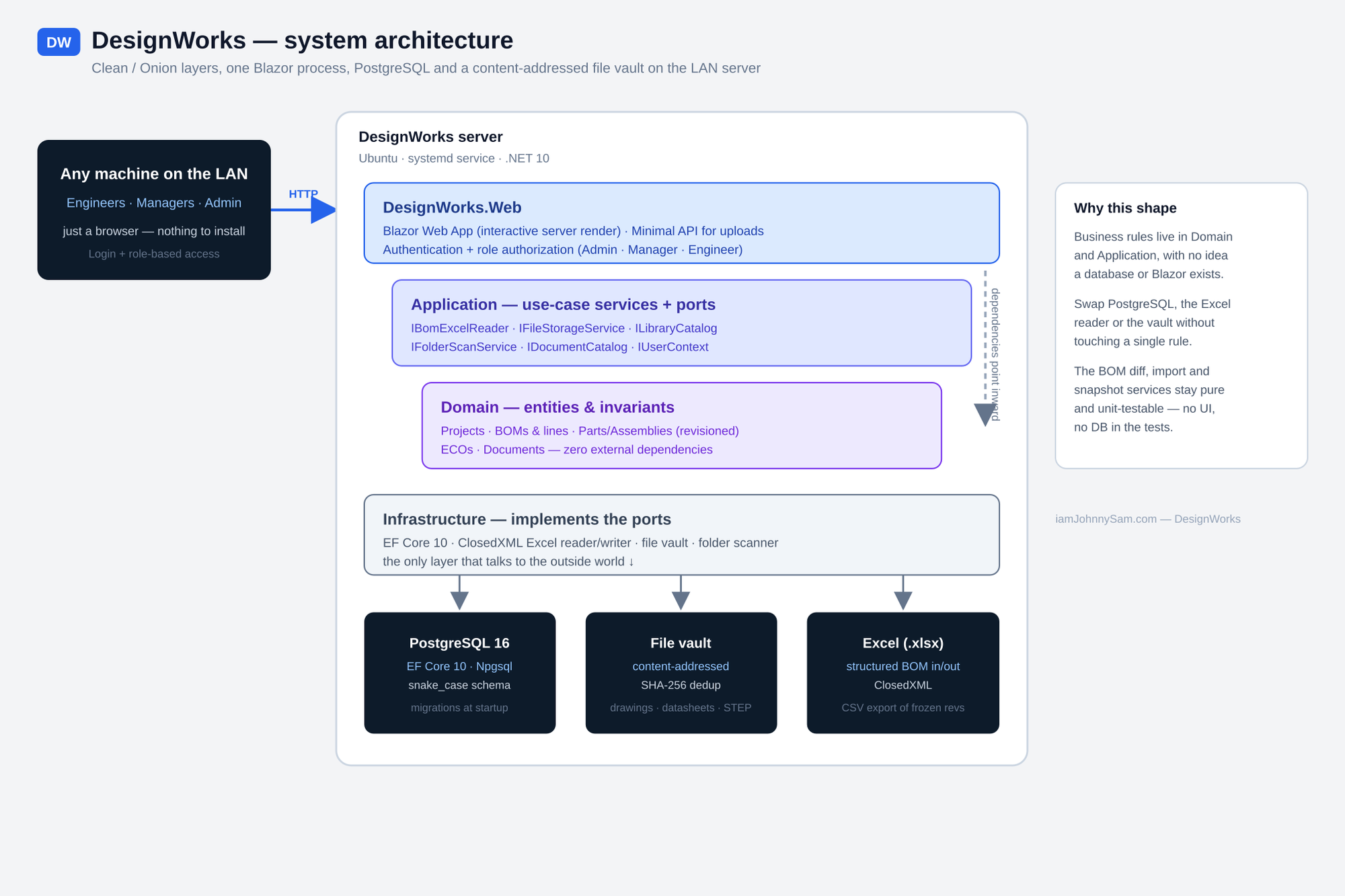
- Domain — the entities and their invariants (projects, BOMs, parts, assemblies, ECOs, documents). Zero external dependencies.
- Application — the use-case services and the ports (interfaces) they depend on: the Excel reader, the file store, the library catalog, the folder scanner.
- Infrastructure — the only layer allowed to touch the outside world: EF Core, ClosedXML, the vault, the folder scanner.
- Web — the Blazor UI, the upload API, authentication and role authorization.
The payoff is that the interesting logic — the BOM diff, the import decomposition, the revision snapshot — stays pure and testable with no database and no UI in the tests. It runs as a systemd service on an Ubuntu server, listens on the LAN, and applies its database migrations automatically on startup. Anyone on the network reaches it with a browser; there is nothing to install on their machine.
Roles: Who Can Do What
"Anyone on the network can log in" only works if the app knows who you are and what you are allowed to do. DesignWorks has three roles:
- Engineer — uploads BOMs, edits drafts, raises ECOs, attaches drawings, submits work for review. The everyday role.
- Engineering Manager — everything an engineer can do, plus creating projects, reviewing and redlining drawings, and the one action that matters most: freezing a revision.
- Admin — manages users and the settings that drive the rest of the app.
Your role badge sits next to your name in the top bar, and the UI simply does not show you buttons you are not allowed to press.
The Dashboard
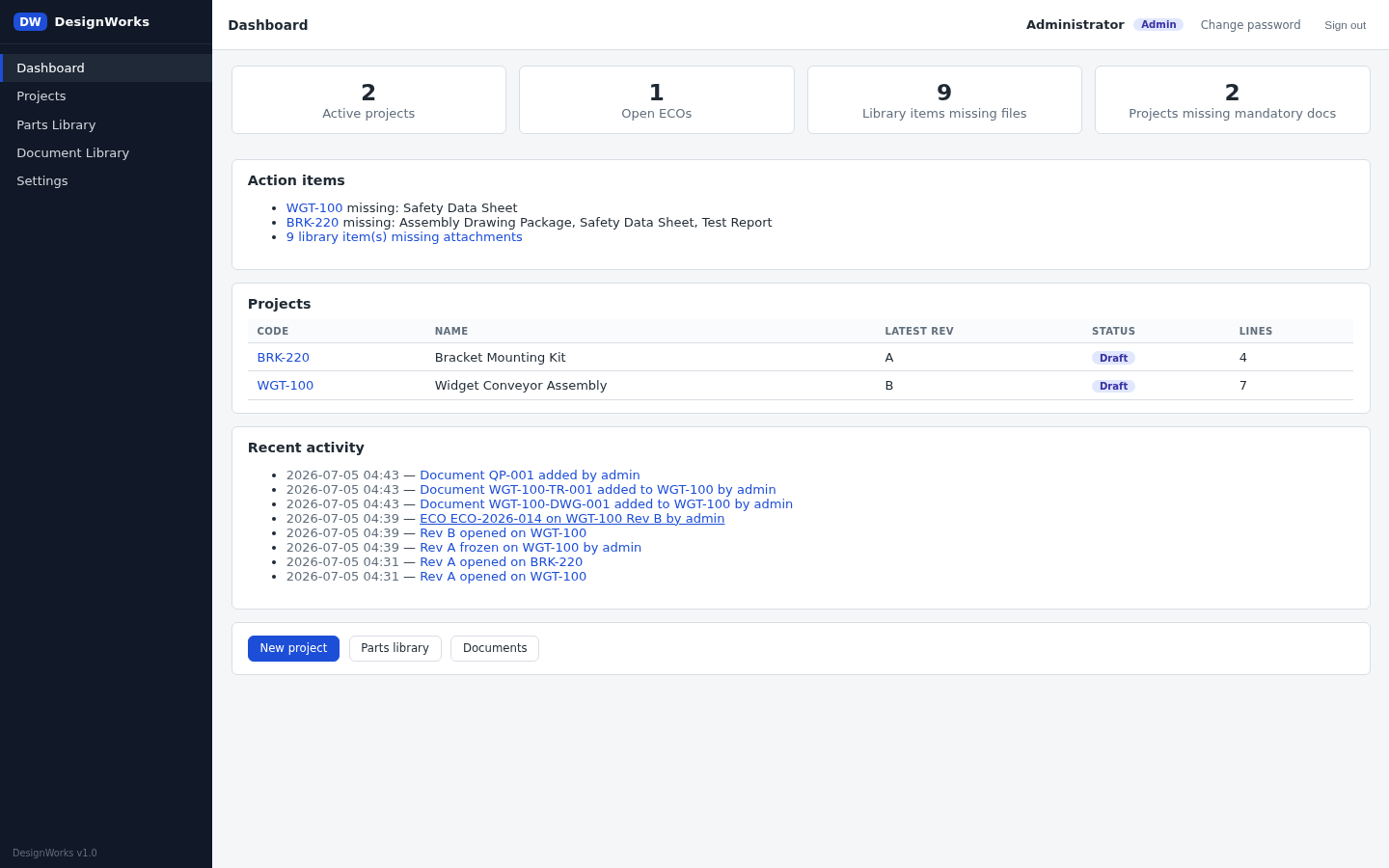
The landing page answers the "what is outstanding?" question that a shared drive never could. Four stat tiles link straight to whatever needs attention — active projects, open ECOs, library items missing a drawing, and projects missing a mandatory document. Below them, an action items list spells out exactly what is missing per project, and a recent activity feed shows every import, freeze, ECO and document upload across the whole workspace, newest first.
Projects and the BOM Workspace
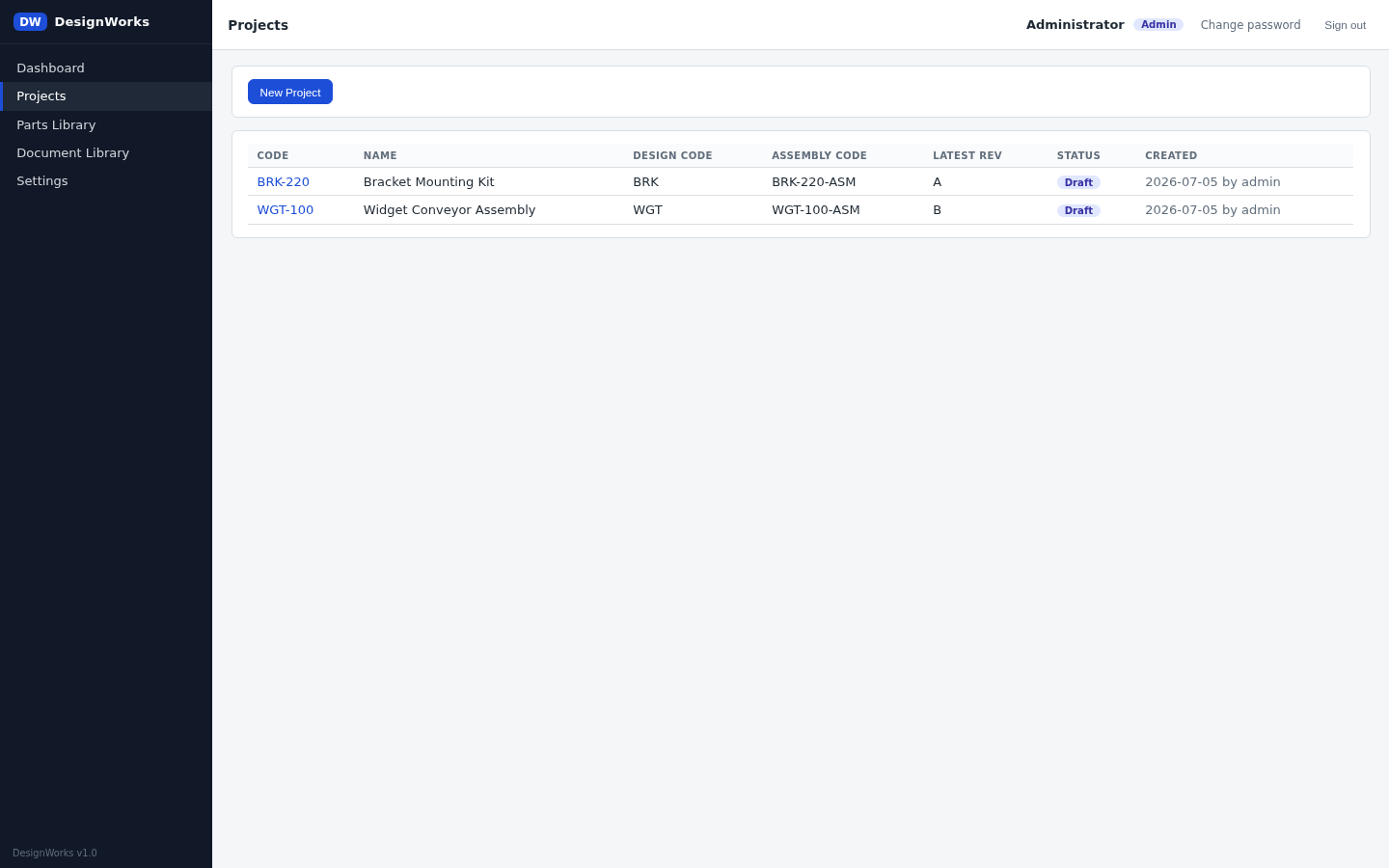
A manager creates a project with four fields — project code, project name, design code and assembly code. Everyone can see the project list; only managers get the "New Project" button.
Clicking a project opens its BOM workspace — one revision at a time, chosen from the Rev A, Rev B … buttons at the top. Only one person can actively edit a project's BOM at a time; if someone else is mid-edit you get a "view only" banner until they go idle. This is the single-writer discipline that the shared drive never had, made automatic.
Importing Revision A
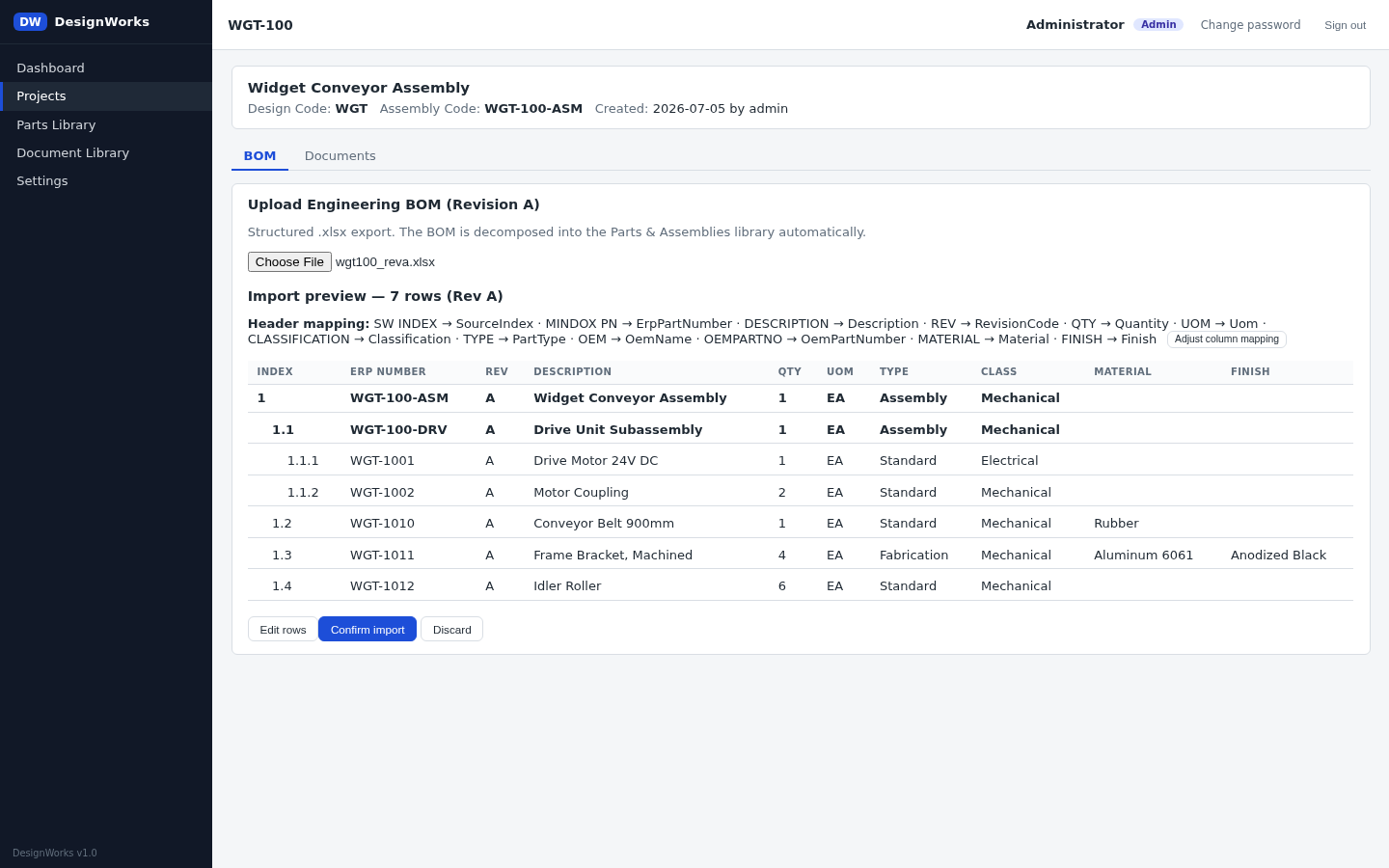
The first revision of any BOM starts life as a structured .xlsx upload. DesignWorks auto-detects the header row and works out what each column means, decomposes the flat sheet into a proper parts-and-assemblies tree, and shows you a preview before anything is saved. You can fix the column mapping, edit rows inline, insert a missing row, and resolve any attribute conflicts against what is already in the library — all before you commit.
Drafts, Freezing, and the Revision Lifecycle
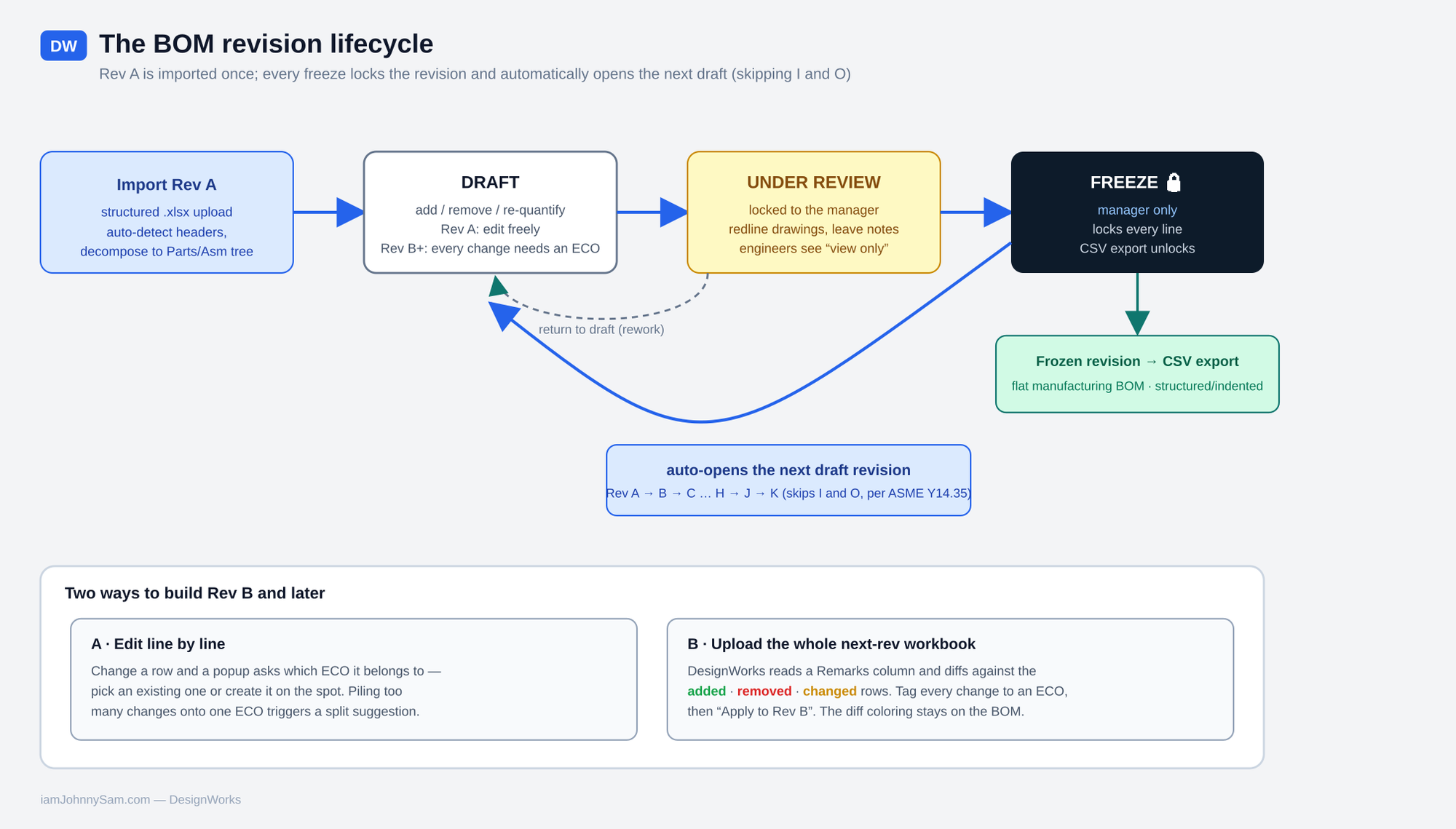
Once imported, Rev A is a draft: add, remove and re-quantify lines freely — no change order is needed on the very first revision. When it is ready, a manager freezes it. Freezing locks every line so nothing can change, and — this is the important bit — it automatically opens the next draft revision so work carries on. Revision letters skip I and O, per ASME Y14.35, so the sequence runs A, B, C … H, J, K. A frozen revision also unlocks CSV export: a flat manufacturing BOM, or a structured indented one.
The SHARED Tag
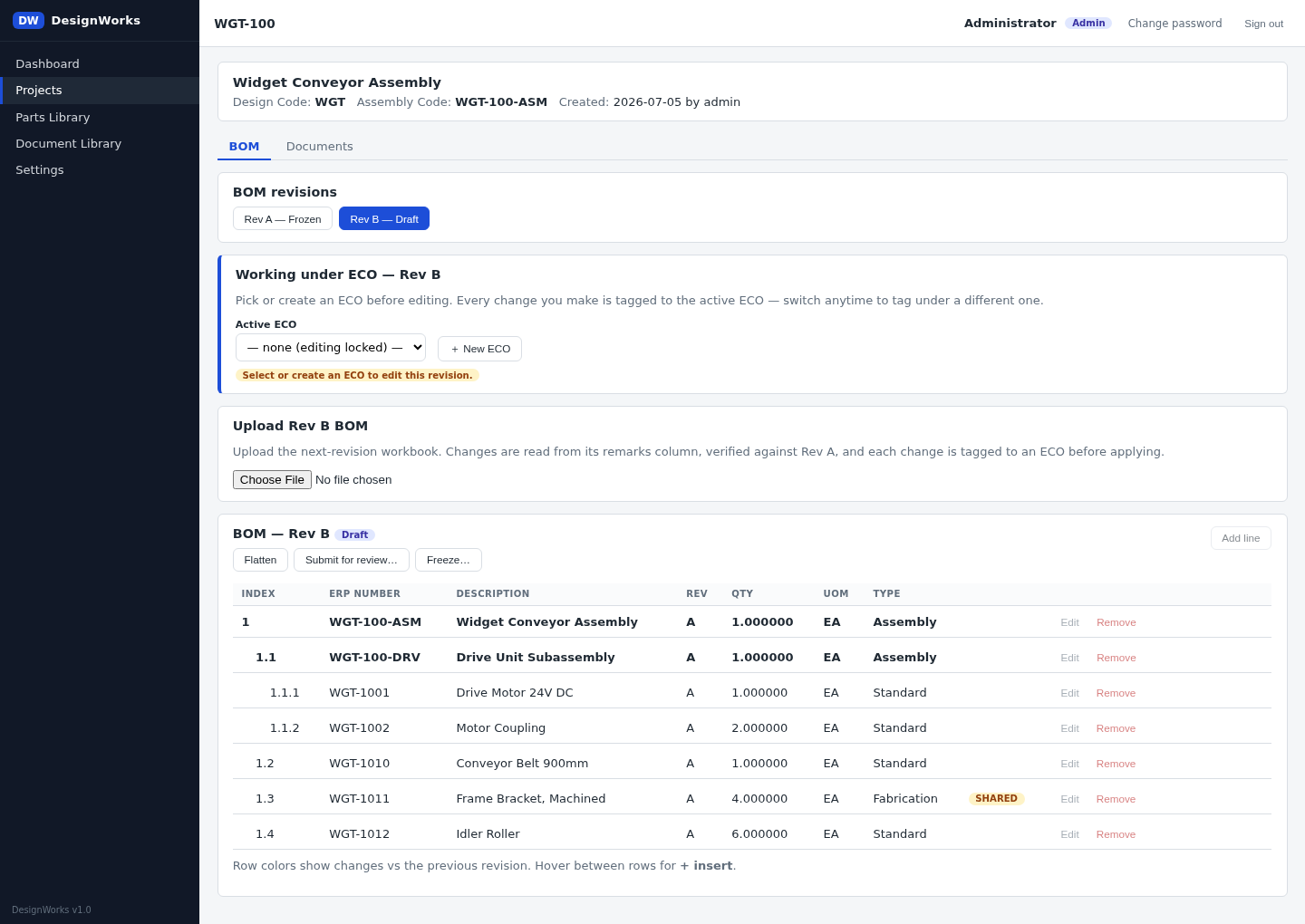
This is my favourite feature, because it fixes the most expensive silent failure. Any part or assembly whose ERP number also appears in another project's BOM is flagged SHARED. Click the tag and it tells you exactly which other project and revision uses it. The bracket that lives in three machines is no longer invisible.
Change Orders on Rev B and Later
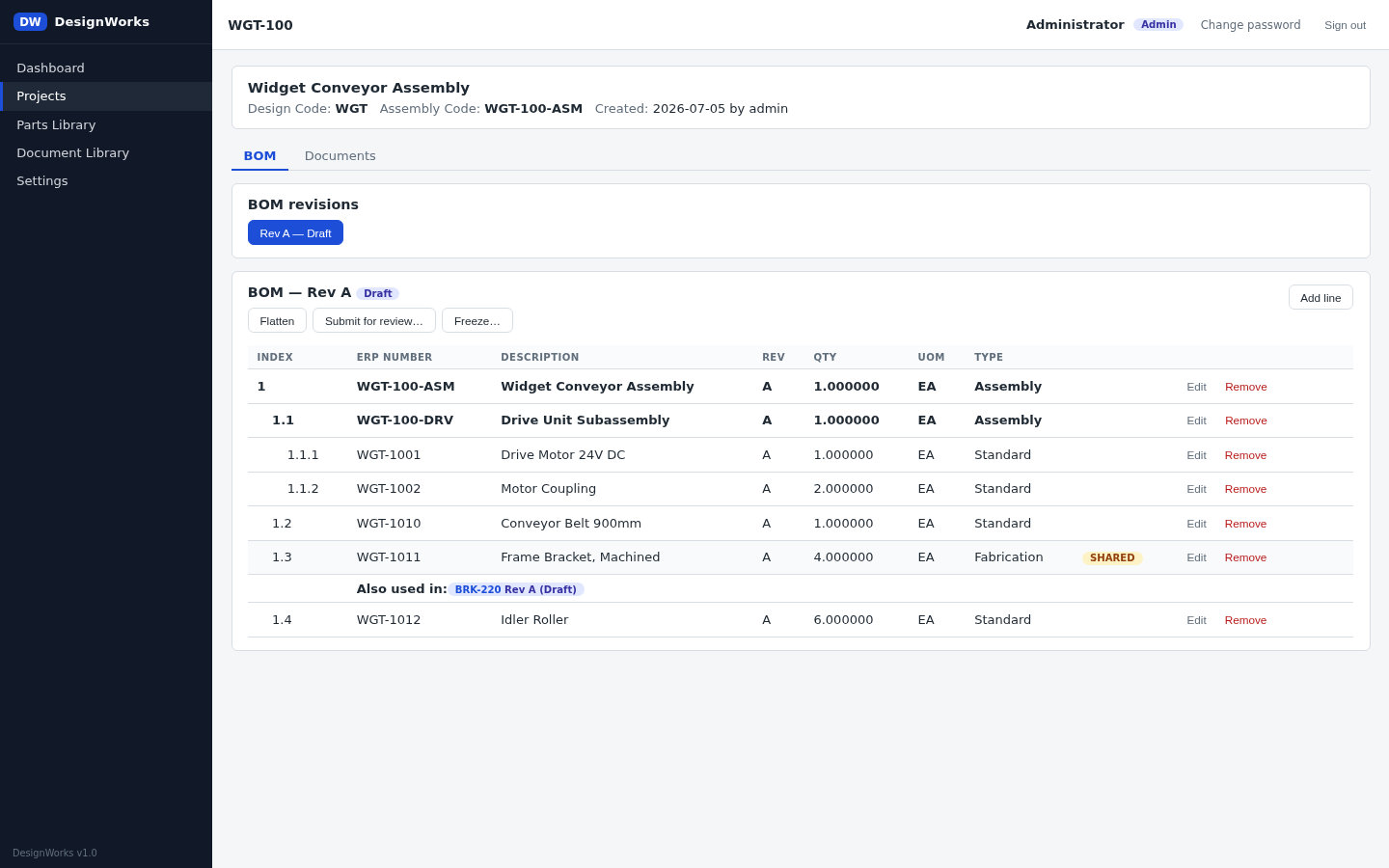
Past Rev A, every add, insert, remove, quantity change or revision bump needs an Engineering Change Order — but you do not pick one up front and you do not stop editing to do paperwork. You just edit; the moment you make a change, a popup asks which ECO it belongs to. Choose an existing one or create a new one on the spot (a number, plus an optional PDF or Word document you can attach later). If you keep piling changes onto a single ECO, the popup warns you once it already covers two or more and offers to split them out.
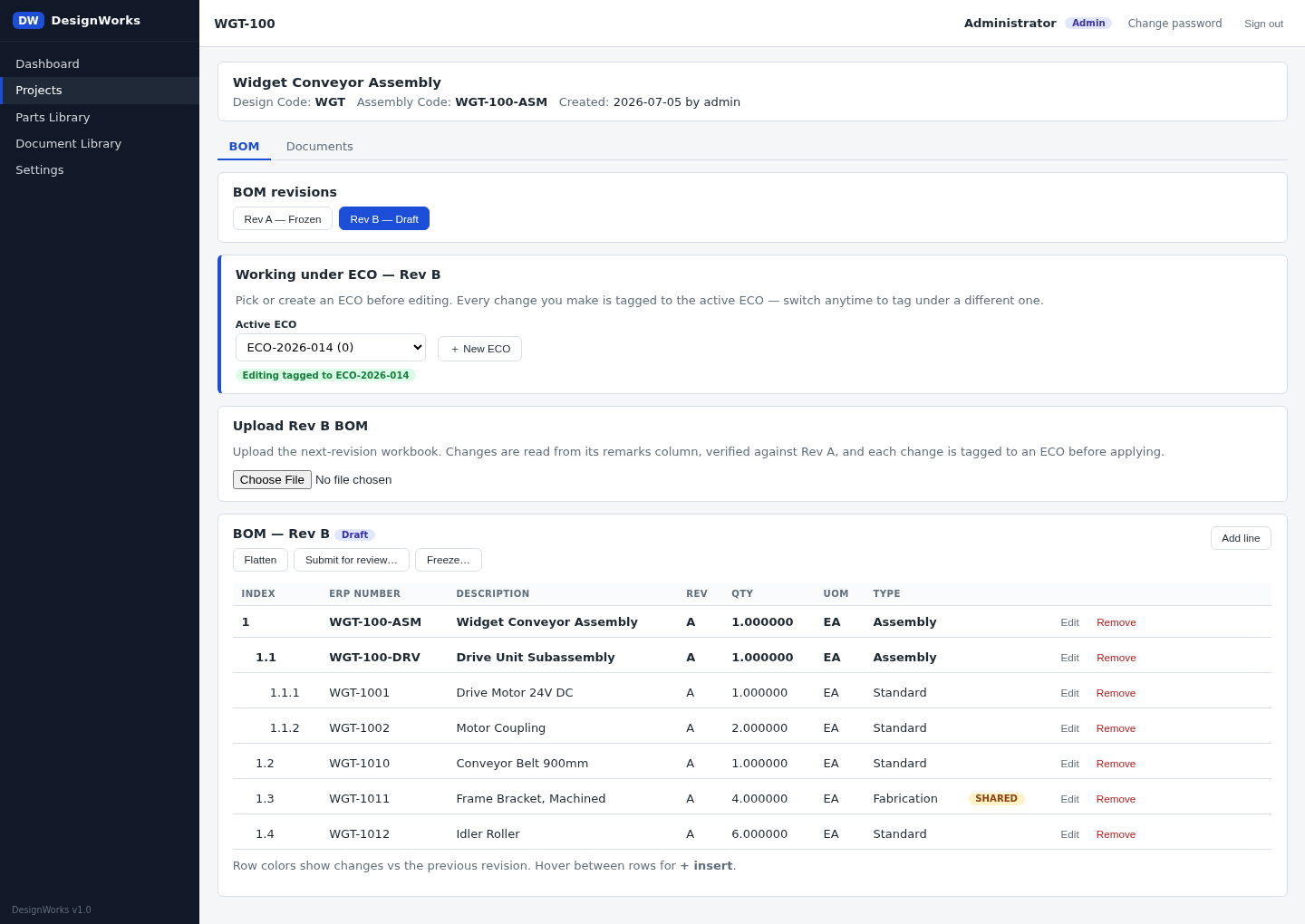
Changing a nested part automatically revs up its parent assemblies all the way to the top, so the change actually propagates instead of hiding two levels down. And if one of those parents is shared with another project, DesignWorks pauses and makes you confirm the rev-up first — because revving it here leaves the other projects on the old revision until they choose to pick up the new one. A shared part can never be changed for one team behind another team's back.
Uploading the Whole Next Revision at Once
Editing line by line is fine for a handful of changes. For a big revision, you can instead upload the entire next-revision workbook. DesignWorks reads a Remarks column — keywords like Remove, New, Rev, Change — and diffs the whole sheet against the previous revision. Added rows show green, removed rows red, changed quantities and revisions amber. Every detected change has to be tagged to an ECO — all at once, or per row — before "Apply to Rev B" unlocks.
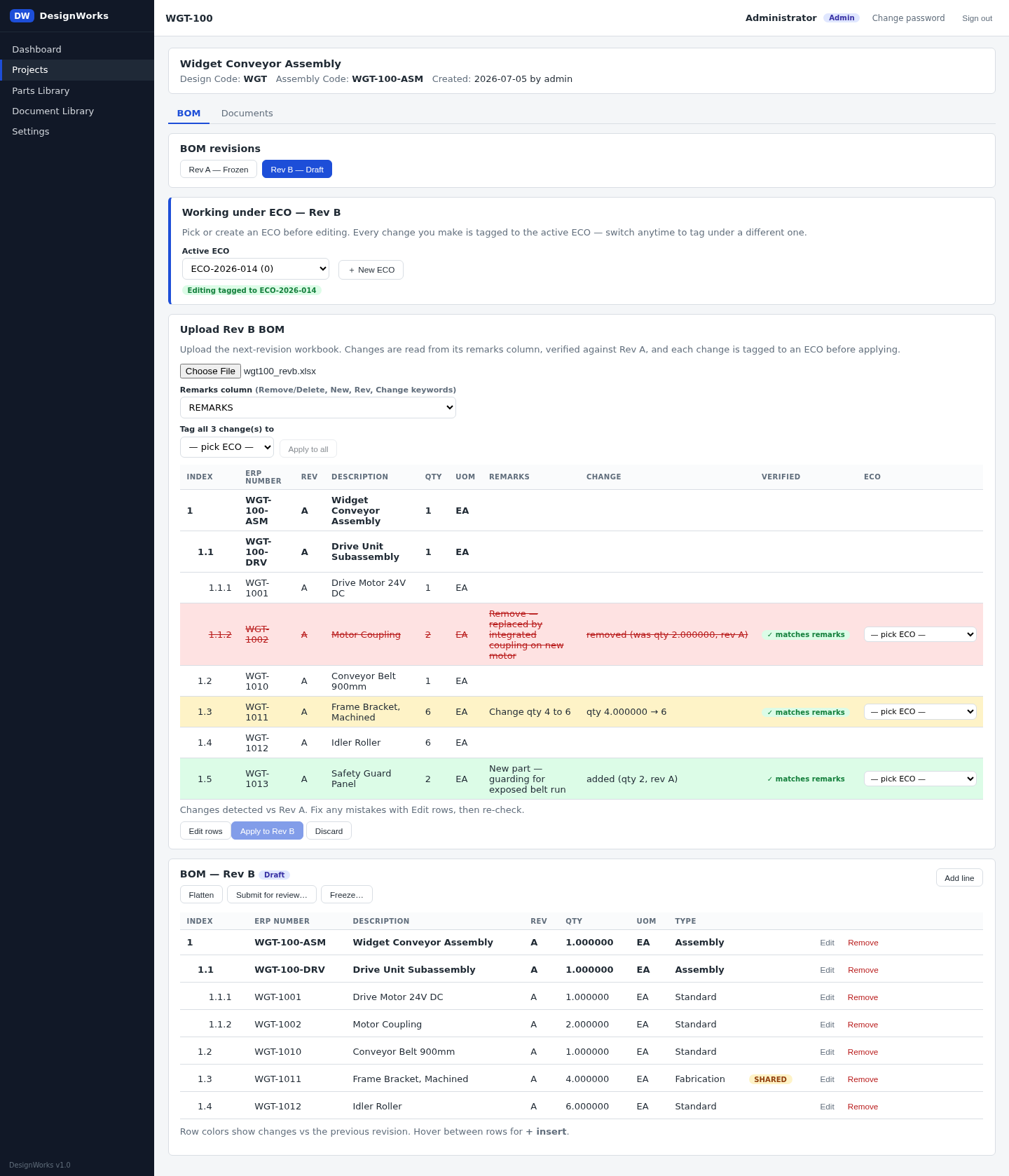
Once applied, the diff colouring stays on the live BOM so anyone can see what changed and why, and a "Changes on Rev B" ledger lists every change against its ECO.
Review, Redlining and Manager Notes
When a draft is ready, "Submit for review" locks it to the Engineering Manager — engineers see a "view only" message until it is returned to draft or frozen. While reviewing, a manager can open any row, view its attached drawing, mark it up directly on the PDF with a built-in red-pen annotator, and leave a short note for the engineer.
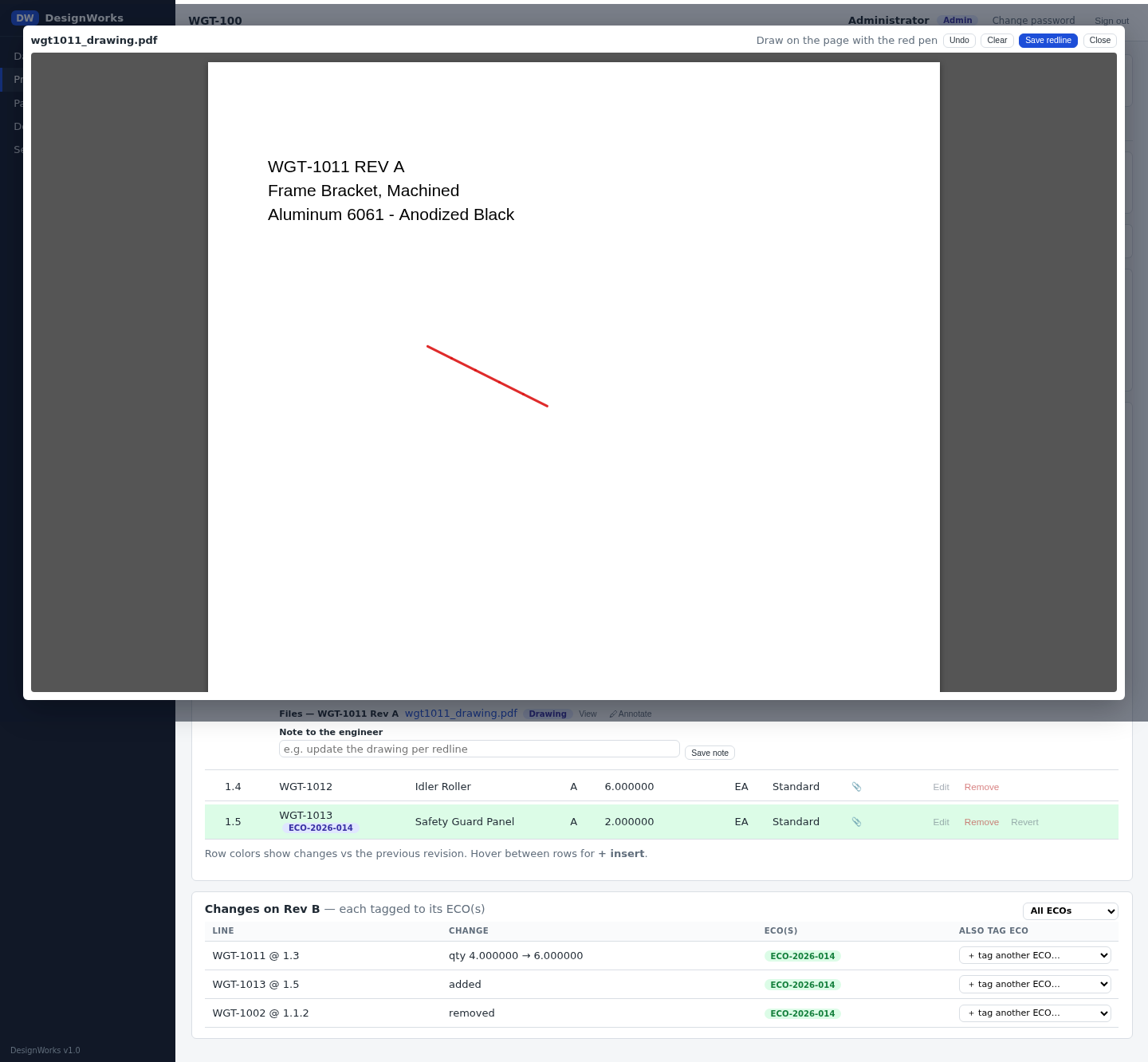
The Drawing Acknowledge Cycle
Back in draft, any row with an unresolved redline shows a red DRAWING badge. Opening it does not just say "fix this" — it tells the engineer exactly what they are allowed to do, based on where else that part is used. This is where the sharing rules and the revision rules meet:
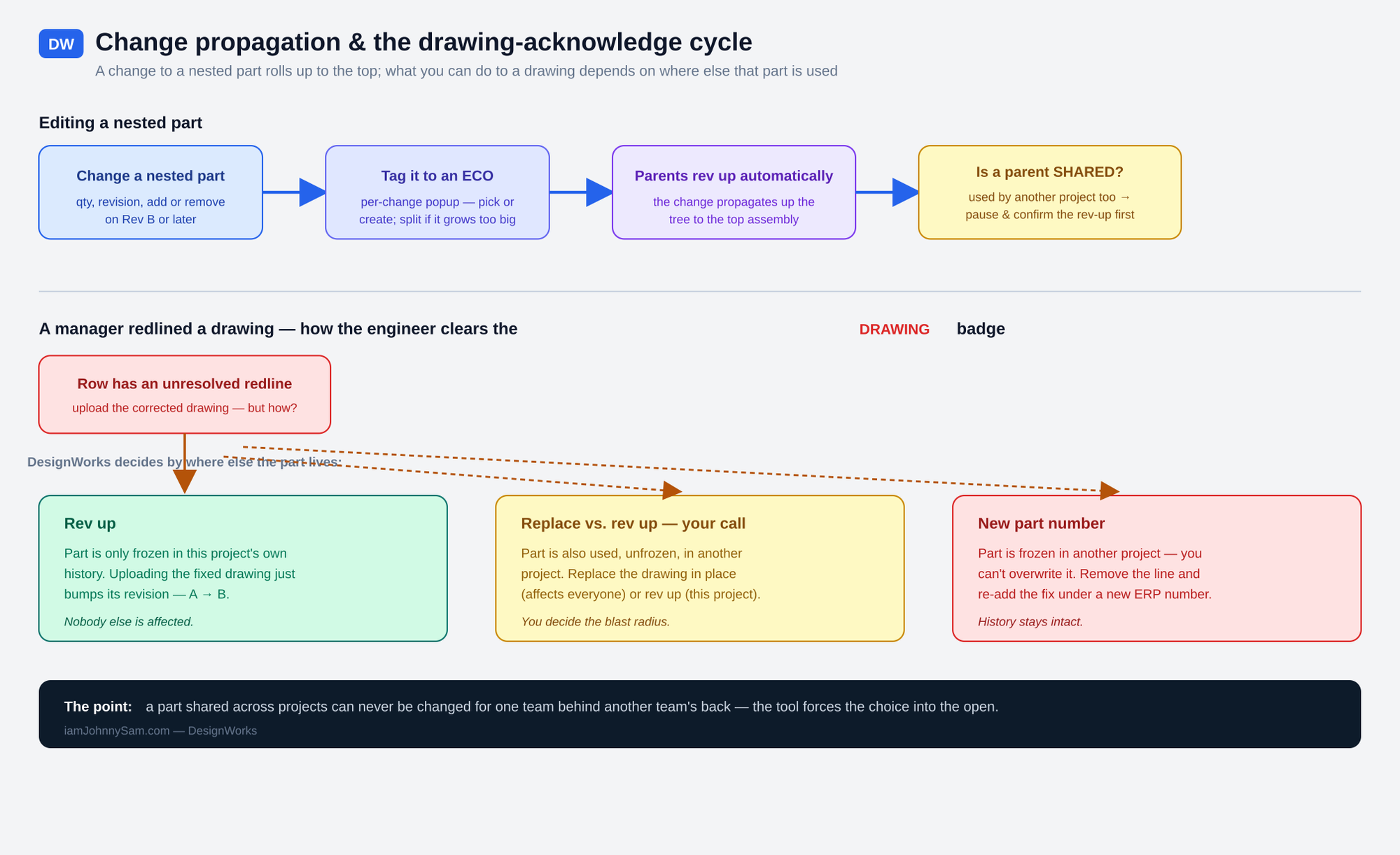
- Rev up — the part is only frozen in this project's own history, so uploading the corrected drawing simply bumps its revision (A ? B). Nobody else is affected.
- Replace vs. rev up — your choice — the part is also used, unfrozen, in another project. You decide: replace the drawing in place (affects everyone) or rev up for this project only.
- New part number — the part is frozen in another project, so you cannot overwrite it. Remove the line and re-add the corrected part under a new ERP number. History stays intact.
The Parts and Assemblies Library
Every part and assembly ever imported lives here, grouped by ERP number with all of its revisions. Expand a row and you get its attachments per revision (drawings, datasheets, STEP models for machined and fabricated parts), a usage panel showing which projects use it and whether it is shared, and — for managers — a delete option that is blocked if the item is still referenced anywhere.

Attaching files one at a time is tedious, so there is a folder scan: point it at a folder, and it matches filenames against configurable naming patterns — {ERP}_REV{REV}, {OEM_NAME}_{OEM_PN} and so on — then proposes the files to attach. You review the matches and attach the ones you want.
The Document Library
BOMs are not the only controlled thing on a project. Pick a project and you get its mandatory-document checklist — configured in Settings, so every project might be required to have, say, a Test Report — alongside any other documents uploaded for it. Document numbers are unique across the whole workspace, and the same number cannot repeat with the same revision inside one project.
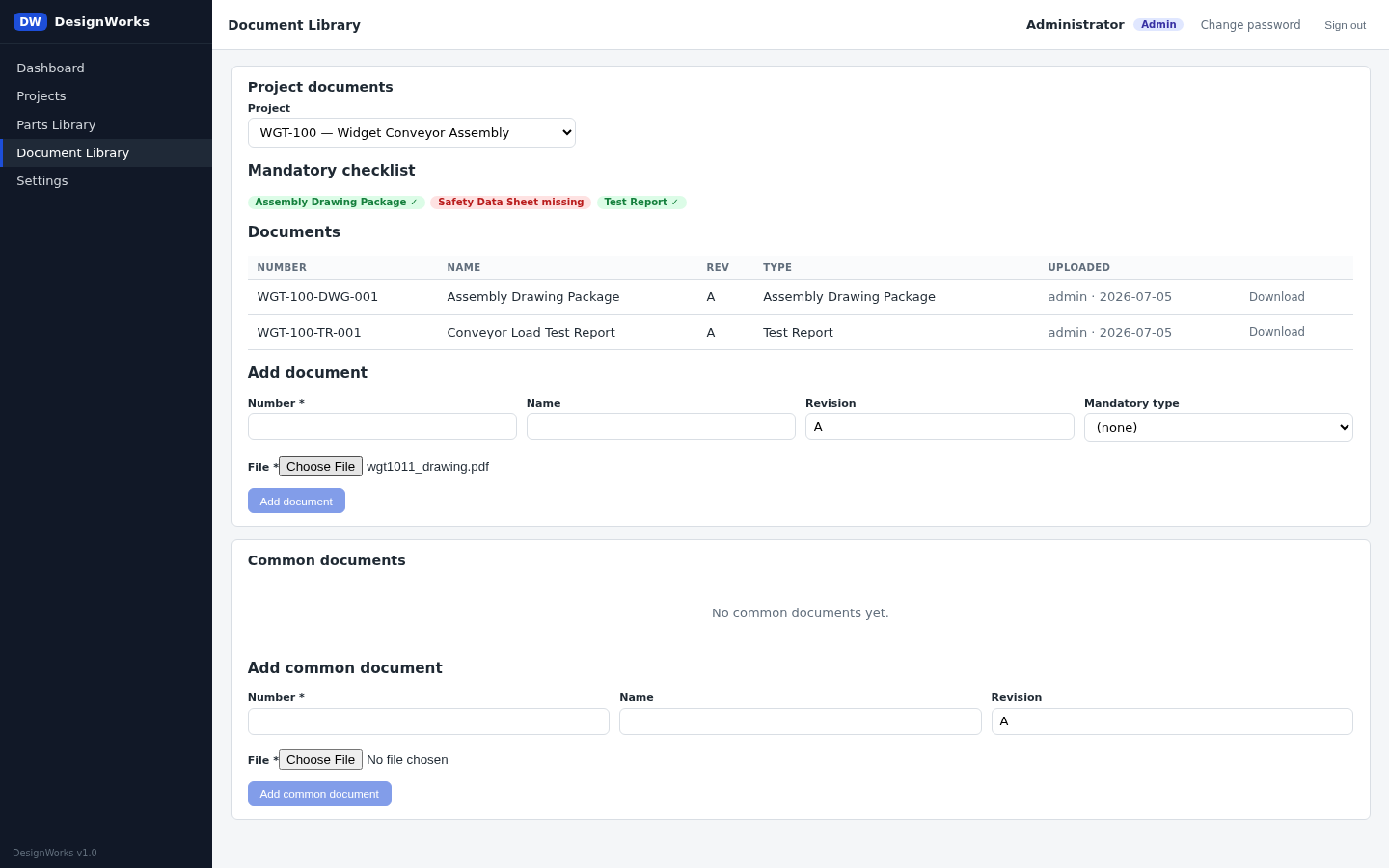
Common documents belong to no single project — a shared quality procedure, for instance. Tick which projects should see them and they appear in those projects' lists automatically, without the file being duplicated.
Settings: The Rules Engine
A lot of what makes DesignWorks strict is data, not code. The Settings area — managers and admins only — is where those rules live, so the team can adjust them without a code change:
- Mandatory document types — the checklist every project is measured against on the dashboard and in the document library.
- Folder-scan rules — the filename patterns the library's folder scan uses to match files to parts.
- Lookups — the part type, classification and unit-of-measure values offered throughout the app; extend them as the catalog grows.
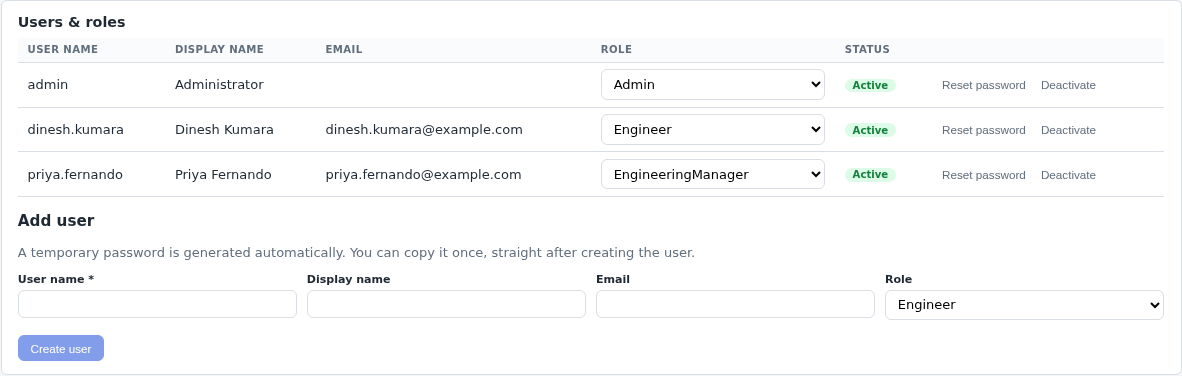
- Users and roles — create accounts and assign roles. A new account or a password reset shows a one-time temporary credential; copy it immediately, because only a one-way hash is stored and it is never shown again.
Where It Stands
DesignWorks is at v1.0 and running as a systemd service on the office LAN server, backed by PostgreSQL, deployed by a script that publishes a self-contained build and restarts the service. It has replaced the specific bad habits it was built to kill: BOMs edited in place with no lock, change orders reconstructed after the fact, drawings drifting away from the part list, and shared components changed for one project without the others ever knowing.
It deliberately does not do everything. There is no two-way ERP integration yet — v1 ingests structured BOMs one way. There is no real-time co-editing of the same BOM; the draft lock is deliberately coarse. There is no approval workflow beyond ECO capture and a manager's freeze. Those are the honest edges of a v1, and they are the obvious candidates for a v2. For now it does the thing I actually needed: it makes the BOM behave, so the truth about a machine's design lives in one place that enforces its own rules — instead of in a spreadsheet called USE_THIS_ONE.